TEKIBO Journal
Setting up Oracle OCI MFA the practical way
Use the Oracle Cloud Infrastructure (OCI) Console to enroll an authenticator app, then use Oracle Cloud Shell only when you need to inspect or clean stale TOTP devices.
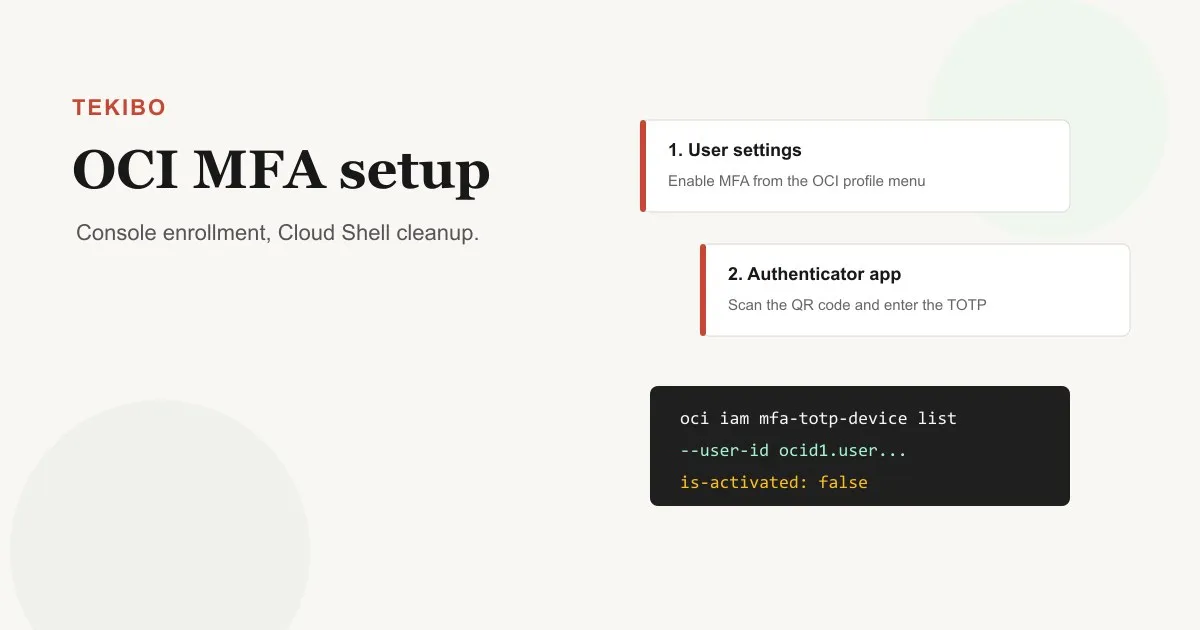
Multi-factor authentication is one of the first things you should turn on after creating or inheriting an Oracle Cloud Infrastructure (OCI) account. Oracle OCI uses time-based one-time passwords, or TOTP, where an authenticator app on your registered mobile device generates the second factor you enter after your password.
The important detail is that normal enrollment is an Oracle OCI Console workflow. Oracle OCI has CLI commands for MFA TOTP devices, and Oracle Cloud Shell is useful when you need to inspect or remove an inactive device, but the clean first-time setup is: open your user settings in Oracle OCI, scan the QR code, verify the code, and then test a fresh sign-in.
Before you start
Install an authenticator app on the phone you actually control and can keep with you. Oracle recommends Oracle Mobile Authenticator and Google Authenticator as tested apps, and any app you use needs to generate TOTP codes reliably for Oracle OCI.
Have these ready:
- Access to the Oracle OCI Console.
- Your own Oracle Cloud user account. Each user enables MFA for themselves in OCI.
- A mobile authenticator app compatible with Oracle OCI MFA.
- A few uninterrupted minutes. If the browser closes before verification, generate a new QR code and scan again.
Do not paste QR codes, seeds, recovery codes, or one-time passcodes into chat tools, random web pages, notes synced across devices, or screenshots you plan to share. Treat the Oracle OCI TOTP seed like a password.
Enable MFA from the Oracle OCI Console
Open the Oracle OCI Console and use the profile menu in the top navigation. Choose User settings, then select Enable Multi-Factor Authentication.
Oracle OCI shows a QR code. Scan that code with your authenticator app. The app should add an account name that includes your Oracle tenancy and username.
Enter the current six-digit code from the app into the verification field and select Enable. The code changes roughly every 30 seconds, so use the current code shown by the app.
Sign out and sign in again to Oracle OCI. After your username and password are accepted, OCI should ask for the one-time code from your registered device. That test matters because it proves the device, time sync, and Oracle account registration all work together.
Why not start with the Oracle OCI CLI?
The Oracle OCI CLI includes oci iam mfa-totp-device commands, including create, activate, list, delete, and generate-totp-seed. That does not mean a new user should treat CLI enrollment as the main path.
Oracle’s official OCI MFA documentation states that the standard enablement flow requires the Console QR code. The CLI reference also notes that activation requires manual Oracle OCI Console interaction. For a normal user-facing setup guide, the Oracle Console path is clearer, safer, and easier to verify.
Use Oracle Cloud Shell when you need to inspect state, clean up a failed registration, or support a user who started Oracle OCI MFA setup and ended up with an inactive TOTP device.
Find the user OCID in Oracle OCI
If you need Oracle Cloud Shell cleanup, first get the user’s OCID.
In the Oracle OCI Console:
- Open Identity & Security.
- Under Identity, choose Users.
- Select the user account.
- On the user information tab, copy the OCID.
Keep the value local to your terminal session. It will look like an ocid1.user... identifier used across Oracle Cloud Infrastructure.
Inspect MFA devices in Oracle Cloud Shell
Start Oracle Cloud Shell from the OCI Console and store the user OCID in a variable:
USER_OCID="ocid1.user.oc1..<your-user-ocid>"List MFA TOTP devices for that user in Oracle OCI:
oci iam mfa-totp-device list \
  --user-id "$USER_OCID" \
  --all
The returned objects include the device OCID. They do not return the seed, which is expected in Oracle OCI: the seed should not be retrievable after enrollment. If a device exists but shows "is-activated": false, it is usually a failed or incomplete Oracle MFA enrollment attempt.
Delete a stale inactive Oracle OCI MFA device
Only delete a device when you are sure it is stale or inactive. Copy the device id from the list output:
DEVICE_OCID="ocid1.credential.oc1..<inactive-device-ocid>"Then delete it:
oci iam mfa-totp-device delete \
  --mfa-totp-device-id "$DEVICE_OCID" \
  --user-id "$USER_OCID"
Confirm the prompt, then return to the Oracle OCI Console and run the normal MFA setup again. Avoid using --force unless you are scripting a known Oracle Cloud cleanup operation and have already verified the target value.
Require MFA in Oracle OCI policies
Turning MFA on for your Oracle OCI user improves sign-in security. You can also restrict sensitive Oracle Cloud policies so they work only after a user has successfully completed MFA. OCI policies support a condition like this:
where request.user.mfaTotpVerified='true'For example:
allow group PlatformAdmins to manage instance-family in tenancy where request.user.mfaTotpVerified='true'That pattern is useful for high-risk permissions in Oracle Cloud Infrastructure, but roll it out carefully. Test with a small group first so you do not lock legitimate users out of operational access.
Oracle OCI CLI sign-in after MFA
If you use session-based Oracle OCI CLI authentication, run:
oci session authenticate --region <your-region>The CLI opens a browser sign-in flow. After password authentication, Oracle OCI asks for the authenticator code. Once the browser flow completes, return to the terminal and finish creating the CLI profile.
Recovery notes for Oracle OCI MFA
If the registered mobile device is lost, the user will not be able to complete Oracle OCI Console sign-in. An administrator must disable MFA for that user so Oracle MFA can be enabled again with a new device.
Do not disable Oracle OCI MFA casually. Treat disabling MFA like a break-glass action, document who requested it, and re-enable MFA as soon as the user has a replacement device.
Official Oracle references: